 Prompt Workshop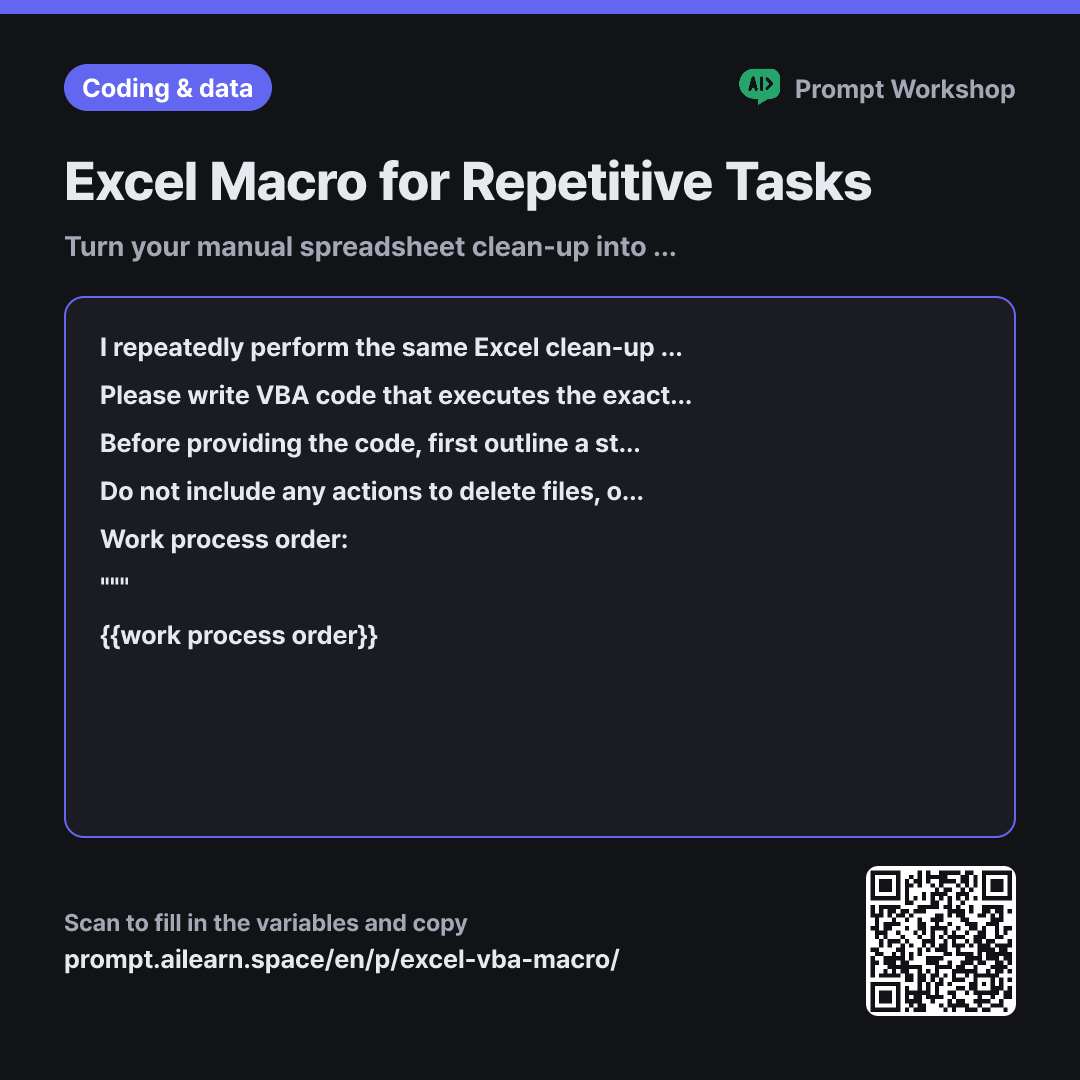
Why it is written this way
Tap a block to see its paragraph
I repeatedly perform the same Excel clean-up tasks manually every month, and I want to automate this with a VBA macro. My file is located at {{file path location}}, and the sheet composition is as follows: {{sheet composition}}
Please write VBA code that executes the exact work process order below. Do not add any steps I did not mention or change the sequence.
Before providing the code, first outline a step-by-step breakdown showing how each part of the code corresponds to my steps. Then, provide the full code with clear comments at the beginning of each step explaining what it does. Finally, explain where to paste this code and how to run it in Excel.
Do not include any actions to delete files, overwrite workbooks, or open other files unless explicitly requested. If there are irreversible actions (such as row deletion or overwriting values), please include a confirmation prompt before running and create a backup copy of the original sheet first.
Work process order: """ {{work process order}} """
- Material What the AI needs to know ×2
- Work What to do, and how ×2
- Output What comes back, in what shape ×1
When asking AI to generate an Excel macro, code failures usually stem from incorrect assumptions rather than syntax errors. Simply asking for "a macro to clean up and save data" causes the AI to assume default sheet names like Sheet1, data starting on row 2, and its own arbitrary methods for finding the last row. If your file uses different sheet names or headers on row 3, the script will crash immediately.
Read the full explanation · 3 paragraphs
This is why the task paragraph explicitly instructs the model not to add extra steps or reorder actions. AI models often try to be overly helpful by applying extra styling after sorting or auto-saving at the end. That single auto-save line could overwrite your raw data before you even check the output. Specifying the sheet composition and file path location upfront serves the exact same protective purpose.
Requiring a step breakdown before the code is the core strategy of this prompt. Reviewing the outline makes misunderstandings instantly visible, allowing you to catch issues—like "Step 3 should calculate averages instead of subtotals"—before wading through full VBA scripts. Adding comments at each step also makes future adjustments effortless. Simply pasting your manual steps line by line dramatically improves script accuracy.
Finally, the constraints paragraph acts as a critical safety net. VBA deletions cannot be undone with Ctrl+Z. Prompting a confirmation dialog and creating an automatic sheet backup before destructive actions safeguards your data when testing new macros. Including instructions on where to paste and run the code ensures zero friction even if you are new to VBA.
Unfamiliar terms? See Aha AI: prompt, chain-of-thought
Compared with a bad example
Write an Excel macro for me. Delete rows where amount is 0, sort by vendor, and save it.
The generated code might look fine at first glance, but it hardcodes Sheet1 and assumes data begins on row 2. Running it will trigger runtime errors or, worse, delete rows from the wrong sheet. Because it includes an auto-save without an undo safeguard, you risk permanent data loss with no guidance on where to paste or test the script.
Variations
Check Native Excel Solutions First
Macros require ongoing maintenance. If a workflow can be handled via Power Query or formulas, that route is often easier to maintain long-term.
Show prompt
Review the work process order below and let me know if any steps can be handled using native Excel features (such as Tables, Pivot Tables, Power Query, or formulas) without needing a VBA macro. Please provide a comparison table highlighting only the steps that strictly require VBA and the reasons why.
""" {{work process order}} """
Create a Shareable Macro for Teammates
When sharing macros across a team, silent errors on mismatched files are the biggest risk. Validating structural assumptions upfront prevents data corruption.
Show prompt
Please write VBA code based on the following {{sheet composition}} structure to execute the steps below, designed so that multiple team members can run it on their own files. Because sheet names or column indices may vary, declare all configurable values as constants at the very top of the module. Additionally, include error checks that validate the worksheet structure and halt execution with a descriptive message if the layout does not match.
""" {{work process order}} """
Model notes
Always make a backup copy of your file before running a new macro. Rows deleted via VBA cannot be restored with Undo. Remember to save your workbook as an Excel Macro-Enabled Workbook (.xlsm) to preserve the code.
Last updated 2026-09-02 · Found a mistake? Let us know