 Prompt Workshop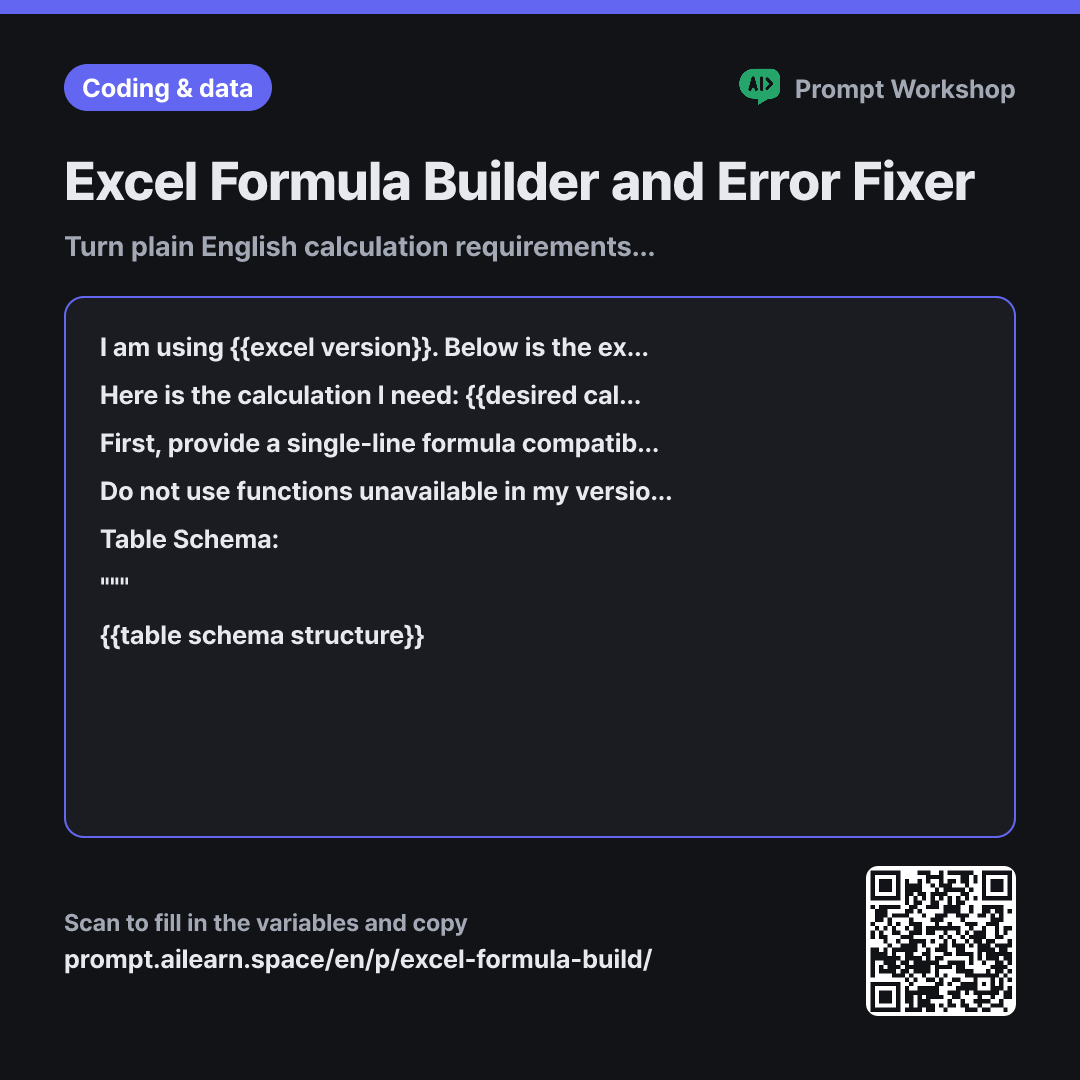
Why it is written this way
Tap a block to see its paragraph
I am using {{excel version}}. Below is the exact schema and cell range of my worksheet.
Here is the calculation I need: {{desired calculation}}. Please write a single-cell formula to achieve this.
First, provide a single-line formula compatible with my version. Below that, break down the formula into a table explaining what each part does. Finally, state in one line which cell to paste it into and how far down to drag/fill it.
Do not use functions unavailable in my version. If there is a more efficient modern function available, keep the main formula compatible and list the alternative separately under a "For Newer Versions" heading. Also, include a one-line note on how edge cases—like missing values, blanks, or numbers formatted as text—are handled.
Table Schema: """ {{table schema structure}} """
- Material What the AI needs to know ×2
- Work What to do, and how ×1
- Output What comes back, in what shape ×2
When you ask ChatGPT for an Excel formula, it often defaults to modern functions like XLOOKUP or FILTER. While clean, these throw #NAME? errors in Excel 2016 or 2019. Furthermore, if you don't specify cell ranges, AI tends to use full-column references like A:A, accidentally including headers in calculations or slowing down the sheet.
Read the full explanation · 3 paragraphs
The Context in the first paragraph addresses both pitfalls by specifying the exact version and table structure. Specifying ranges like "headers in row 1" and "A2:E500" allows you to paste the output directly without manual adjustments. For lookup queries, stating column positions upfront eliminates misaligned formulas.
The three-part Format ensures usability: a formula alone is difficult to modify. The component breakdown tells you exactly which segment to tweak when adding criteria or expanding ranges, while clear fill instructions prevent relative and absolute reference errors.
Excel formulas rarely work on the first try with complex data. This prompt is structured for iterative refinement. Specifying edge-case handling and isolating modern functions keeps follow-up requests minimal. If an output is wrong, simply replying with actual row values (e.g., "Row 12 returns 0, but the values are...") will get you the correct fix within one or two turns.
Unfamiliar terms? See Aha AI: prompt, output-format
Compared with a bad example
Give me an Excel formula to sum totals by client.
This returns a generic formula like SUMIF(A:A, ...) that does not match your specific sheet layout and slows down performance. Without knowing your version, it might suggest newer functions that return #NAME? errors. It also fails to account for constraints like excluding rows with zero quantity.
Variations
When a Formula Returns Unexpected Values
Designed for diagnostic troubleshooting without jumping to single conclusions. Accuracy increases significantly if you include both your current formula and the actual incorrect output below the schema.
Show prompt
My formula in {{excel version}} is not returning the expected results for the table below. Review the table structure, then list up to three likely root causes in order of probability. For each cause, provide a verification step and the corrected formula.
Table Schema and Current Formula: """ {{table schema structure}} """
When Criteria Keep Expanding
Best for reports where date ranges or target categories change frequently. Referencing cells directly saves you from rewriting formulas each month.
Show prompt
Write a formula for {{excel version}} to calculate "{{desired calculation}}" from the table below, structured so that adding more criteria later is straightforward. Provide two versions: one referencing criteria stored in dedicated cells, and one with criteria hardcoded into the formula. Include a one-line comparison of their pros and cons.
""" {{table schema structure}} """
Model notes
Paste the generated formula into an empty cell and test it on a few rows first. If the output differs from expected values, paste 2–3 sample rows with their actual values in a follow-up prompt to resolve the issue quickly.
Last updated 2026-09-02 · Found a mistake? Let us know