 Prompt Workshop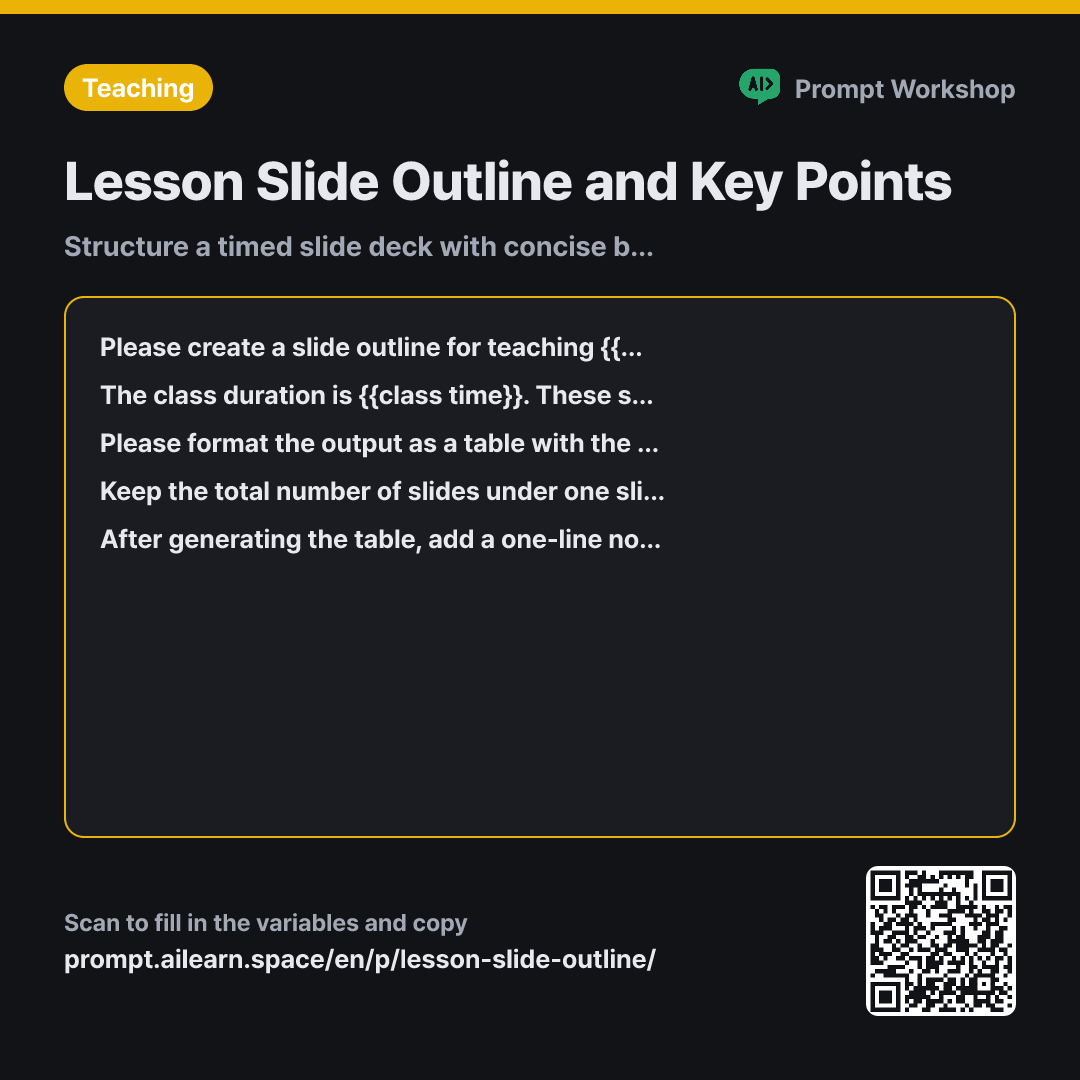
Why it is written this way
Tap a block to see its paragraph
Please create a slide outline for teaching {{main central topic}} to my students.
The class duration is {{class time}}. These slides are not a self-contained presentation; they are visual aids meant to replace a whiteboard. Students will look at the screen while listening to my spoken explanation.
Please format the output as a table with the following columns: Slide Number, Slide Title, On-Screen Text, and Teacher's Talking Point (one line).
Keep the total number of slides under one slide per 5 minutes of {{class time}}. Limit the on-screen text to a maximum of 3 lines per slide, with no more than 6–8 words per line. If specific textbook page numbers or exact statistics are needed, do not invent them; mark them as [Verify Info].
After generating the table, add a one-line note pointing out any section where students might get bored. If I ask you to modify a specific slide (e.g., "Replace Slide 3 with an activity"), please update and regenerate only that slide.
- Material What the AI needs to know ×1
- Work What to do, and how ×1
- Output What comes back, in what shape ×2
When asking ChatGPT to create a lesson slide deck without constraints, it often generates a bloated 20-slide outline. For a 45-minute class, that means switching slides every two minutes with barely any time to explain. Without length controls, AI tries to cover every possible subtopic, leaving you with the extra chore of trimming the outline in half.
Read the full explanation · 3 paragraphs
Clarifying the Task in the second paragraph—that these are board-replacement visuals rather than standalone presentation slides—is the key foundation of this prompt. If you ask for general presentation slides, AI fills the screen with dense paragraphs meant for handouts. Specifying whiteboard-style visuals forces the text to stay minimal, leaving the explanation to the teacher. Indicating that students will listen while looking at the screen serves the same purpose.
The four columns defined in the Format section keep only what is strictly necessary. The "Teacher's Talking Point" column ensures that the on-screen visuals and the spoken lesson stay aligned. Without it, you get clean slide bullet points but still have to plan what to actually say during class.
The rule in the Constraint paragraph—"one slide per 5 minutes"—manages the overall pacing dynamically without needing hardcoded slide counts. If you change the lesson duration, the total number of slides adjusts automatically. The line and word limits prevent full paragraphs from cluttering the screen. Finally, the last instruction allows you to refine slides individually without regenerating the entire outline and losing parts you liked.
Unfamiliar terms? See Aha AI: output-format, hallucination
Compared with a bad example
Make a presentation slide outline for 8th-grade math on applications of linear equations.
Without slide limits, the AI generates 15 to 20 slides mechanically listing learning objectives, definitions, examples, exercises, and summaries straight from the textbook. The on-screen text consists of full sentences, meaning teacher explanations will pause while students read the screen. It also lacks speaking notes, forcing you to redesign the lesson flow afterward. You will end up spending more time manually cutting content than if you had set constraints from the start.
Variations
For Activity-Centered Lessons
Labeling slides as either Activity or Lecture makes it easy to spot lecture-heavy sections at a glance.
Show prompt
Please create a slide outline for a lesson on {{main central topic}}. Ensure that student-led activities take up more than half of the {{class time}}. For each activity slide, include clear instructions, time allotted, and group size. Use a table with the columns: Slide Number, Title, On-Screen Text, and Type (Activity or Lecture). If there are more than three lecture slides in a row, insert an interactive activity between them.
Trimming an Existing Slide Deck
Trimming existing materials is often more common than starting from scratch. Keeping a list of deleted slides makes it easy to restore content later if needed.
Show prompt
Below is the current slide outline for a lesson on {{main central topic}}. Please trim it down to fit {{class time}}. Create a table categorizing slides into Delete, Merge, and Keep, with a one-line rationale for each. Prioritize removing slides that do not directly support the primary learning objective, and provide a separate list summarizing what was deleted.
Model notes
After receiving the outline, you can ask "Extract only the on-screen text for each slide," allowing you to copy and paste directly into your presentation software.
Last updated 2026-09-02 · Found a mistake? Let us know